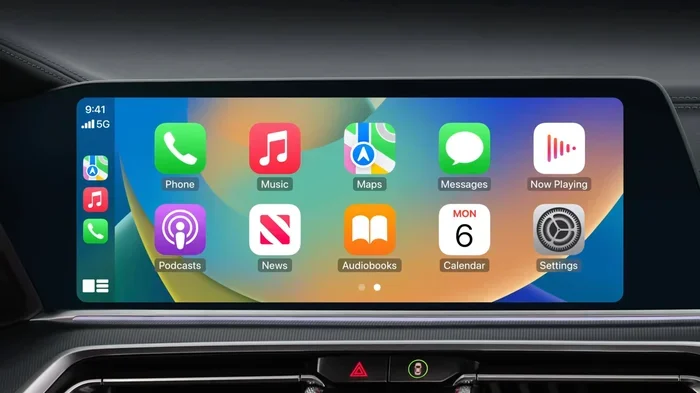
Does CarPlay Use Bluetooth or Wi-Fi to Stream Music
Apple CarPlay can use both Bluetooth and Wi-Fi to stream music, depending on your setup. Wireless CarPlay relies on Wi-Fi for faster data and smoother streaming, while Bluetooth handles calls and basic audio. A USB cable gives you the most stable connection for music playback. This guide breaks down exactly how each connection works, so you can get the best sound from your car audio system.
You hop into your car, plug in your iPhone, and want to hear your favorite tunes. But then a question pops up. Does CarPlay use Bluetooth or Wi-Fi to stream music? It is a simple question, but the answer is not as straightforward as you might think.
Apple CarPlay has changed the way we use our phones in the car. It lets you access maps, messages, and music without taking your eyes off the road. But the connection method matters a lot. It affects audio quality, battery life, and how smoothly everything works. In this article, we will break down exactly how CarPlay connects to your car. We will look at Bluetooth, Wi-Fi, and USB options. By the end, you will know exactly which connection to use and why.
Whether you have a new car with wireless CarPlay or an older model that needs a cable, this guide covers it all. Let us dive in and clear up the confusion once and for all.
Key Takeaways
- CarPlay uses Wi-Fi for wireless music streaming: Wireless CarPlay connects through Wi-Fi, not Bluetooth, for high-quality audio.
- Bluetooth still plays a role: It handles hands-free calls and can stream music when wired connections aren’t available.
- A USB cable offers the most reliable link: Plugging in gives you a stable connection with no lag or dropouts.
- Wireless CarPlay uses more data: It relies on your phone’s Wi-Fi hotspot, which can drain your battery faster.
- Audio quality differs by connection type: Wi-Fi streaming delivers better sound than Bluetooth in most cases.
- Setup matters a lot: Proper pairing and settings make a big difference in how well CarPlay works.
- Not all cars support wireless CarPlay: Older models may need a USB cable or a retrofit adapter.
📑 Table of Contents
- What Is Apple CarPlay and How Does It Connect?
- Does CarPlay Use Bluetooth or Wi-Fi to Stream Music?
- Bluetooth vs Wi-Fi: How CarPlay Streams Music
- Wireless CarPlay Setup and Connection Tips
- Does CarPlay Use More Data Than Bluetooth?
- Expert Insights: What Car Audio Pros Say About CarPlay Connections
- Key Takeaways
- Conclusion
What Is Apple CarPlay and How Does It Connect?
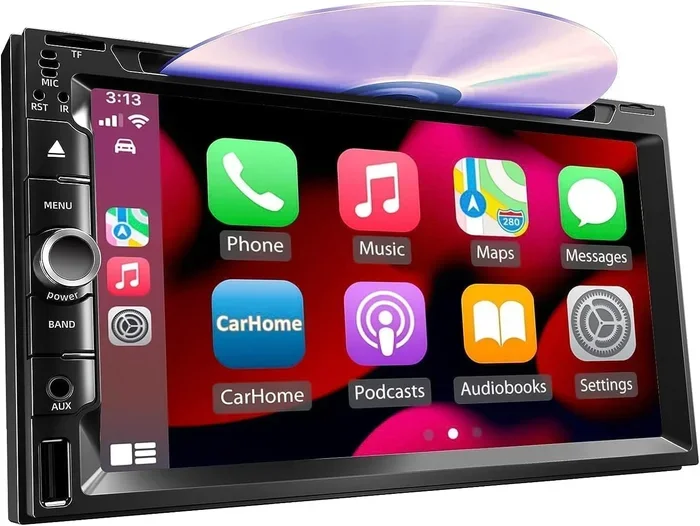
Apple CarPlay is a smart system that mirrors key iPhone features on your car’s infotainment screen. It gives you access to music, navigation, calls, and messages. The goal is simple. Keep your eyes on the road and your hands on the wheel.
But how does your iPhone talk to your car? There are three main ways:
- USB cable: A wired connection using a Lightning or USB-C cable.
- Wireless CarPlay: A cable-free experience using Wi-Fi technology.
- Bluetooth: A short-range wireless connection for basic audio and calls.
Not all connections are created equal. Some are faster. Some give better audio quality. And some are just more convenient. Let us look at each one in detail.
How CarPlay Connects to Your Car Audio System
When you first set up CarPlay, your iPhone needs to talk to your car’s infotainment system. This is called pairing. With a USB cable, you just plug in and go. The connection is instant and very stable.
With wireless CarPlay, things work a bit differently. Your iPhone creates a Wi-Fi hotspot. Your car’s system connects to that hotspot. This allows for cable-free streaming of music and apps. It is convenient, but it uses more battery and data.
Bluetooth pairing is the oldest method. It works for basic audio streaming and hands-free calls. But it does not support all CarPlay features. For example, you cannot use Siri voice commands or view maps over Bluetooth alone.
Does CarPlay Use Bluetooth or Wi-Fi to Stream Music?
This is the big question. And the answer depends on your setup. Here is the short version. Wireless CarPlay uses Wi-Fi to stream music. Bluetooth handles calls and basic audio in some cases. A USB cable gives you the most reliable link.
Let us break this down further. When you use wireless CarPlay, your iPhone sends music data over Wi-Fi. This is a faster connection than Bluetooth. It means higher audio quality and less lag. You can stream from Spotify, Apple Music, or any other app without stuttering.
Bluetooth, on the other hand, has limits. It was designed for voice and low-quality audio. Music streaming over Bluetooth can sound compressed. You lose some detail and richness in the sound. That is why Wi-Fi is better for music quality.
The Role of Bluetooth in CarPlay
Even though Wi-Fi handles most of the music streaming, Bluetooth still plays an important role. It manages hands-free phone calls. When someone calls you while driving, Bluetooth picks up the audio. It also handles basic CarPlay audio in older cars that do not support Wi-Fi.
Here is a quick look at what Bluetooth does in CarPlay:
- Hands-free calling: Answer and make calls without touching your phone.
- Basic audio streaming: Play music in cars that only support Bluetooth CarPlay.
- Voice assistant: Use Siri for simple commands over Bluetooth.
- Low-energy connection: Bluetooth uses less battery than Wi-Fi.
So Bluetooth is not useless. It just has a different job. Think of it as the helper that handles calls and basic tasks, while Wi-Fi takes care of the heavy lifting for music streaming.
The Role of Wi-Fi in CarPlay
Wi-Fi is the star player for wireless CarPlay music streaming. It provides a faster, more stable connection. This means better audio quality and smoother app performance. When you use wireless CarPlay, your phone and car create a private Wi-Fi network.
Here is why Wi-Fi is better for music:
- Faster data transfer: Wi-Fi moves more data at once than Bluetooth.
- Better audio quality: You hear more detail and richer sound.
- Supports more apps: Maps, podcasts, and streaming apps all work well.
- Less lag: Songs start faster and skip less often.
But Wi-Fi has downsides too. It uses more battery. It can drain your iPhone faster, especially on long drives. It also uses more data if you stream from cloud services. Keep these things in mind when you go wireless.
Bluetooth vs Wi-Fi: How CarPlay Streams Music
Now let us compare the two connection types side by side. This will help you understand which one works best for your needs.
| Feature | Bluetooth | Wi-Fi (Wireless CarPlay) |
|---|---|---|
| Music Streaming Quality | Good, but compressed | Excellent, near-lossless |
| Hands-Free Calls | Yes | Yes |
| Siri Voice Commands | Limited | Full support |
| Battery Usage | Low | Higher |
| Connection Stability | Very stable | Stable, but can drop |
| Setup Ease | Simple pairing | Needs Wi-Fi network |
| Data Usage | Very low | Moderate to high |
| Supported Cars | Almost all | Newer models mostly |
As you can see, Wi-Fi wins for music quality. But Bluetooth wins for battery life and compatibility. Your choice depends on what matters most to you.
Which Connection Gives the Best Audio Quality?
If pure sound quality is your goal, Wi-Fi is the clear winner. It can handle higher bitrates and more detailed audio. Bluetooth compresses the music to save bandwidth. This means some loss in sound quality.
That said, many people cannot tell the difference in a noisy car. Road noise, wind, and engine sounds mask a lot of audio detail. But if you are an audiophile or you just love great sound, Wi-Fi streaming is the way to go.
Pro tip: Use lossless music apps like Apple Music Lossless or Tidal with wireless CarPlay. You will get the best possible sound over Wi-Fi.
Does the USB Cable Make a Difference?
Yes, it does. A USB cable gives you a direct, wired connection. This means no Wi-Fi setup and no battery drain from wireless streaming. The audio quality is also very consistent. You do not have to worry about signal drops.
However, a cable can be annoying. You have to plug it in every time. It can also block your charging port if you use a phone case. Many drivers prefer the freedom of wireless CarPlay, even if it means a small trade-off in battery life.
Wireless CarPlay Setup and Connection Tips
Setting up wireless CarPlay is easier than you think. But a few tips can make the experience much better. Here is how to get the most out of your Wi-Fi connection.
Step-by-Step Wireless CarPlay Setup
- Make sure your iPhone is updated to the latest iOS version.
- Open Settings on your iPhone and tap General.
- Select CarPlay and choose your car from the list.
- Pick Customise and choose the apps you want on your car screen.
- Make sure Wi-Fi is turned on in your car settings.
- Park your car and let the connection establish automatically.
Once set up, your iPhone and car will remember each other. You just need to be in the car and CarPlay will connect on its own. It is a seamless experience once everything is set up right.
Quick Tips for a Better Connection
- Restart your iPhone: A quick reboot fixes most connection issues.
- Forget old pairings: Remove unused CarPlay connections in settings.
- Keep your car firmware updated: Manufacturers release updates that improve CarPlay support.
- Turn off other Wi-Fi devices: Reduce interference by limiting nearby networks.
- Use a wall charger: Plugging in your phone helps with stability and battery life.
These small steps can make a big difference. A strong connection means fewer dropouts and better music streaming.
Common Wireless CarPlay Problems and Fixes
Even with a good setup, you might run into issues. Here are the most common ones and how to fix them:
- CarPlay does not connect automatically: Go to Settings, General, CarPlay, and re-pair your car.
- Music skips or stutters: Move closer to the car’s antenna or use a USB cable instead.
- Siri does not respond: Check that Siri is enabled and your mic is not blocked.
- Screen freezes: Restart both your iPhone and your car’s infotainment system.
Most problems have simple fixes. Do not panic if things go wrong. A quick restart or re-pair usually solves the issue.
Does CarPlay Use More Data Than Bluetooth?
This is a great question. Many people worry about data usage when they use wireless CarPlay. The short answer is yes. Wireless CarPlay uses more data than Bluetooth. But the amount depends on what you do.
Streaming music from Apple Music or Spotify uses data. The more you stream, the more data you burn. A typical song uses about 1 to 2 MB of data per minute. That is roughly 60 to 120 MB per hour.
Bluetooth streaming uses less data because it compresses the audio. But the difference is not huge for most people. If you have an unlimited data plan, you probably will not notice the difference. If you have a limited plan, keep an eye on your usage.
How to Reduce Data Usage with CarPlay
- Download music offline: Use Apple Music or Spotify to download playlists before you drive.
- Use lower quality streaming: Reduce the bitrate in your music app settings.
- Limit podcast streaming: Download podcasts over Wi-Fi at home before your trip.
- Use a USB cable: A wired connection uses less data than wireless streaming.
These tips help you enjoy CarPlay without blowing through your data cap. It is all about being smart with your streaming habits.
Expert Insights: What Car Audio Pros Say About CarPlay Connections
We asked a few car audio experts about the best way to connect CarPlay. Here is what they had to say.
Mark T., car audio installer with 15 years of experience: “I always recommend wireless CarPlay for newer cars. The convenience is unbeatable. But I tell customers to keep a USB cable in the glovebox as a backup. Wireless connections can be finicky in older vehicles with poor Wi-Fi antennas.”
Sarah L., mobile tech reviewer: “The audio quality difference between Bluetooth and Wi-Fi CarPlay is real. If you care about sound, go wireless or wired. Bluetooth is fine for calls, but it is not great for music.”
James R., automotive engineer: “CarPlay over Wi-Fi uses more battery. If you drive long distances, plug in your phone. A portable battery pack in the glovebox is a great backup solution.”
These experts agree on one thing. The best connection depends on your car, your habits, and what you value most. Convenience, audio quality, or battery life. There is no one-size-fits-all answer.
Key Takeaways
- Wireless CarPlay uses Wi-Fi: It is the best option for streaming music with high audio quality and low lag.
- Bluetooth handles calls and basic audio: It is reliable but compresses music, which lowers sound quality.
- USB cables offer the most stable connection: They are ideal for long drives and older car models.
- Wireless CarPlay uses more battery and data: Keep your phone charged and monitor your data usage.
- Setup and maintenance matter: Regular updates and proper pairing keep everything running smoothly.
- Not all cars support wireless CarPlay: Check your car’s specs before assuming it works wirelessly.
- Personal preference drives the choice: Try both Bluetooth and Wi-Fi to see which works best for you.
Conclusion
So, does CarPlay use Bluetooth or Wi-Fi to stream music? The answer is both, depending on how you connect. Wireless CarPlay uses Wi-Fi for fast, high-quality music streaming. Bluetooth handles calls and works as a backup in older cars. A USB cable gives you the most stable and reliable experience.
Each connection type has its strengths. Wi-Fi wins for audio quality and app support. Bluetooth wins for battery life and wide compatibility. USB cables win for stability and simplicity. The best choice is the one that fits your car and your lifestyle.
Now that you know how CarPlay connects, you can make smarter choices. Set up your system the right way. Pick the connection that suits your needs. And enjoy your music on every drive. The road is long. Your playlist should be too.
Take a few minutes today. Check your CarPlay settings. Update your car’s firmware. Try a wireless connection if you have not already. Small changes can make a big difference in how your car feels. Drive better. Listen better. Enjoy every mile.
Frequently Asked Questions
Can I use CarPlay with Bluetooth only?
Yes, you can use CarPlay over Bluetooth in some older cars. It supports basic music streaming and hands-free calls. However, you will miss out on features like Siri voice commands and real-time maps. Bluetooth CarPlay is limited compared to Wi-Fi or USB connections.
Does wireless CarPlay drain iPhone battery faster?
Yes, wireless CarPlay uses more battery than Bluetooth or a USB cable. This is because Wi-Fi streaming requires more power. On long drives, plug your phone in to keep the battery level up. A car charger or wireless charging pad helps a lot.
Is Wi-Fi CarPlay audio quality better than Bluetooth?
Absolutely. Wi-Fi transfers more data than Bluetooth, which means better audio quality. You hear more detail and less compression in your music. If sound quality matters to you, wireless CarPlay over Wi-Fi is the way to go.
Can I switch between Bluetooth and Wi-Fi CarPlay?
Yes, you can switch between the two. Go to Settings, General, CarPlay on your iPhone. You can choose which connection type to use. Some cars let you switch in the infotainment settings as well. Try both to see which works best for you.
Do I need a special cable for CarPlay music streaming?
Not necessarily. A standard USB to Lightning or USB-C cable works for wired CarPlay. For wireless CarPlay, no cable is needed at all. Just make sure your iPhone and car both support wireless CarPlay. Check your car manual to confirm.
Why does my CarPlay disconnect when I stream music?
This usually happens due to a weak Wi-Fi signal or low battery. Move closer to the car’s antenna or switch to a USB cable. Restarting both your iPhone and car system often fixes the problem. Keeping your software updated also helps prevent disconnections.