How Do I Pair a New Bluetooth Device to My Car Easily
Pairing a new Bluetooth device to your car is easier than most people think. This guide walks you through every step, from enabling Bluetooth and finding the right mode to fixing common connection problems. You will learn how to connect phones, tablets, and audio devices to almost any car stereo system.
Connecting your phone to your car through Bluetooth might feel confusing the first time. But honestly, it is one of the simplest things you can do to upgrade your driving experience. Whether you want to stream music, take hands-free calls, or use navigation apps, Bluetooth pairing makes it all possible without any wires.
In this guide, we break down the entire process into easy steps. You will learn how to pair a new Bluetooth device to your car quickly, fix common problems, and get the best sound quality every time. We also share tips that even tech beginners will find helpful. So grab your phone, and let us get you connected.
Modern cars come with built-in car infotainment systems that support wireless connections. Older vehicles may need a simple Bluetooth car adapter to get the same benefits. No matter what car you drive, this guide has you covered. Let us dive into the details.
Key Takeaways
- Quick Pairing Process: Most cars let you pair a Bluetooth device in under 3 minutes by enabling Bluetooth, selecting your car from the device list, and entering a PIN.
- Troubleshooting is Simple: Restarting both devices, clearing old pairings, and checking for software updates solve 90% of Bluetooth issues.
- Multiple Devices Work: Many car systems support multipoint Bluetooth, letting you connect two phones at once for seamless switching.
- Safety First: Always pair your device before driving. Set up your connection while parked to avoid distractions on the road.
- Car Tech Accessories Matter: Devices like dash cams and remote start systems can also connect via Bluetooth, adding convenience to your daily drive.
- Wireless CarPlay and Android Auto: Modern cars offer wireless connectivity options that go beyond basic Bluetooth audio streaming.
📑 Table of Contents
- What Is Bluetooth Pairing and Why Does It Matter?
- How to Pair a New Bluetooth Device to Your Car: Step by Step
- Common Bluetooth Pairing Problems and How to Fix Them
- Tips for the Best Bluetooth Experience in Your Car
- Advanced Bluetooth Features You Should Know About
- Quick Tips for Bluetooth Pairing Success
- Common Mistakes People Make When Pairing Bluetooth
- When to Seek Professional Help
- Final Thoughts
What Is Bluetooth Pairing and Why Does It Matter?
Bluetooth pairing is the process of linking two devices wirelessly so they can share data. In your car, this means connecting your phone to the stereo system. Once paired, your phone and car talk to each other automatically.
Here is why this matters so much:
- Hands-Free Calling: You can answer calls without touching your phone. This keeps your eyes on the road and your hands on the wheel.
- Music Streaming: Play Spotify, Apple Music, or any app through your car speakers. The sound quality is often better than your phone speakers.
- Navigation Audio: Turn-by-turn directions come through your car stereo, making them easier to hear over engine noise.
- Charging While Driving: When your phone connects wirelessly, you can plug it into a charger and keep the battery topped up.
Understanding the basics helps you troubleshoot faster when something goes wrong. Most Bluetooth issues come from simple things like outdated software or a full paired devices list. Once you know how the system works, you will rarely run into problems.
How to Pair a New Bluetooth Device to Your Car: Step by Step
The pairing process is very similar across most car brands. Whether you drive a sedan, SUV, or truck, the steps below will guide you through it. Let us walk through each one carefully.
Step 1: Turn on Your Car and the Infotainment System
Start your car and let the infotainment system fully boot up. This is the screen in the center of your dashboard. On some cars, you may need to press the power button. On others, the system turns on automatically when you start the engine.
Make sure your car is parked safely before doing this. You want your full attention on the screen, not the road. Set up your Bluetooth connection while parked every single time.
Step 2: Enable Bluetooth on Your Phone
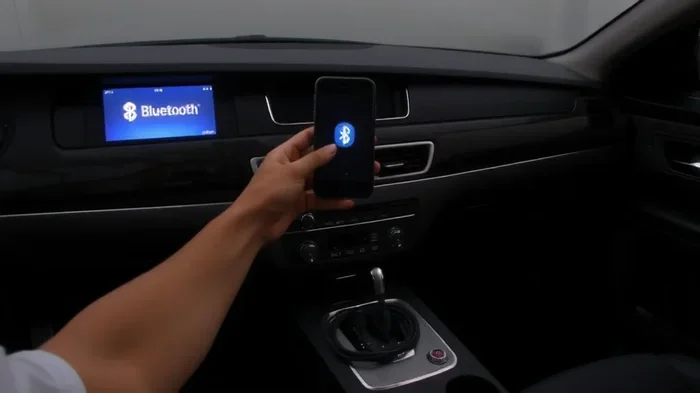
Open the settings app on your phone. Find the Bluetooth option and toggle it on. Your phone will start scanning for nearby devices automatically.
On iPhone, you can swipe down from the top right corner and tap the Bluetooth icon. On Android, swipe down from the top and look for the Bluetooth quick settings tile. Both methods work instantly.
Step 3: Put Your Car into Pairing Mode
This step varies by car brand. Most systems have a Bluetooth settings menu. Look for options like “Add New Device,” “Search for Devices,” or “Pair New Phone.”
Here are common paths for popular brands:
- Toyota: Press the Setup button, then go to Bluetooth Settings and select Add Device.
- Honda: Press the Phone button on the steering wheel or go to Settings, then Bluetooth, then New Device.
- Ford: Tap the Phone icon on the touchscreen, then select Add Bluetooth Device.
- Chevrolet: Press the Phone button on the infotainment system and choose Bluetooth Settings.
Your car will now appear on your phone’s list of available devices. The name usually starts with your car brand, like “Ford Sync” or “Toyota Audio.”
Step 4: Select Your Car from the Phone’s Device List
On your phone, look for your car’s name in the list of available devices. Tap on it to begin the pairing process.
Some cars will display a pairing code on the infotainment screen. You may need to type this code into your phone to confirm the connection. Other cars simply ask you to confirm “Yes” or “Pair” on both screens.
Step 5: Confirm the Connection and Test It
Once paired, your phone and car will connect automatically every time you get in the car. To test it, play some music or make a test call. Check that the audio comes through your car speakers clearly.
If you hear sound, congratulations. You are now wirelessly connected. If not, do not worry. We cover troubleshooting in the next section.
Common Bluetooth Pairing Problems and How to Fix Them
Even when you follow every step correctly, things can go wrong. Bluetooth connections can be finicky sometimes. Here are the most common problems and their solutions.
Your Car Does Not Show Up on Your Phone
This usually happens because the car is not in pairing mode. Go back to your car’s Bluetooth settings and make sure it is actively searching for devices. Also check that Bluetooth is turned on in your car’s settings, not just on your phone.
Sometimes the car’s system needs a quick restart. Turn off the infotainment system, wait 10 seconds, and turn it back on. This clears temporary glitches and refreshes the Bluetooth connection.
The Pairing Fails or Keeps Disconnecting
If pairing fails, the first thing to do is clear old paired devices. Both your phone and your car can only store a limited number of connections. Too many saved devices can cause conflicts.
On your phone, go to Bluetooth settings and remove any old car connections you no longer use. On your car, delete the same device from the paired list. Then try pairing again from scratch.
Another common cause is distance. Bluetooth has a limited range, usually about 30 feet. Make sure your phone is close to the car’s antenna during pairing. Once connected, you can move around freely.
Audio Sounds Distorted or Cuts Out
Distorted audio often comes from interference. Other electronic devices nearby can disrupt the Bluetooth signal. Try turning off nearby devices like dash cams or phone chargers and see if the sound improves.
Also check if your phone is in a case that blocks the signal. Some thick metal or magnetic cases interfere with Bluetooth. Removing the case during use can fix the problem.
Tips for the Best Bluetooth Experience in Your Car
Getting your devices connected is only half the battle. These tips help you get the best performance every time you get behind the wheel.
Keep Your Software Updated
Both your phone and your car’s infotainment system receive software updates. These updates often include Bluetooth fixes and improvements. Check for updates regularly.
On iPhone, go to Settings, then General, then Software Update. On Android, go to Settings, then System, then Software Update. For your car, check the owner’s manual or visit your dealer for update instructions.
Limit the Number of Paired Devices
Most car systems can store between 5 and 10 paired devices. Keeping only your most-used devices in the list improves performance. Remove devices you no longer use.
This also adds a layer of privacy. You do not want a friend’s phone connecting to your car every time they sit in the passenger seat.
Use the Right Audio Profile
Bluetooth supports different profiles for different tasks. The two most important ones are:
- HFP (Hands-Free Profile): This handles phone calls and voice commands. It uses a lower audio quality but ensures clear voice transmission.
- A2DP (Advanced Audio Distribution Profile): This handles music and media streaming. It provides higher audio quality for songs and podcasts.
Most phones handle both profiles automatically. But if you notice that calls sound fine but music sounds bad, check that A2DP is enabled in your Bluetooth settings.
Restart Before You Retry
When nothing seems to work, the simplest fix is often the best one. Turn off Bluetooth on both devices, wait 30 seconds, and turn them back on. This clears the connection cache and forces a fresh search.
Also restart your phone completely. A full reboot fixes many hidden software glitches that a simple Bluetooth toggle cannot address.
Advanced Bluetooth Features You Should Know About
Modern car Bluetooth systems offer features beyond simple audio streaming. Understanding these features helps you get more out of your connection.
Multipoint Bluetooth Connection
Multipoint Bluetooth lets your car connect to two devices at the same time. This is incredibly useful if you share your car with a partner or family member.
When your phone receives a call, the car automatically switches from your friend’s phone to yours. You do not need to disconnect and reconnect manually. Not all car systems support this feature, so check your owner’s manual.
Wireless CarPlay and Android Auto
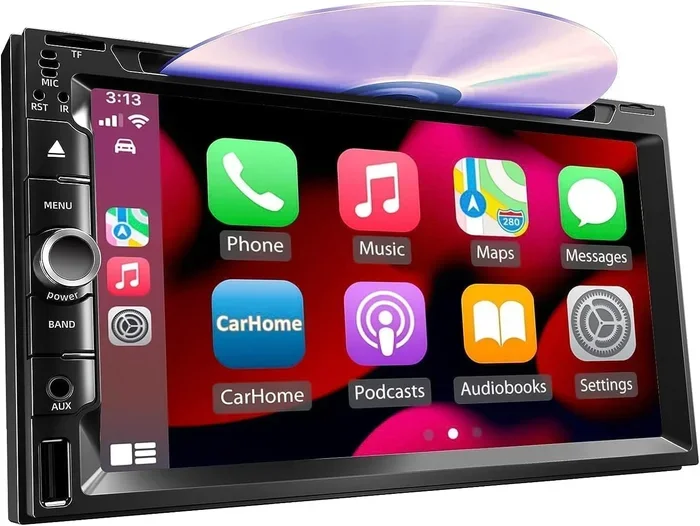
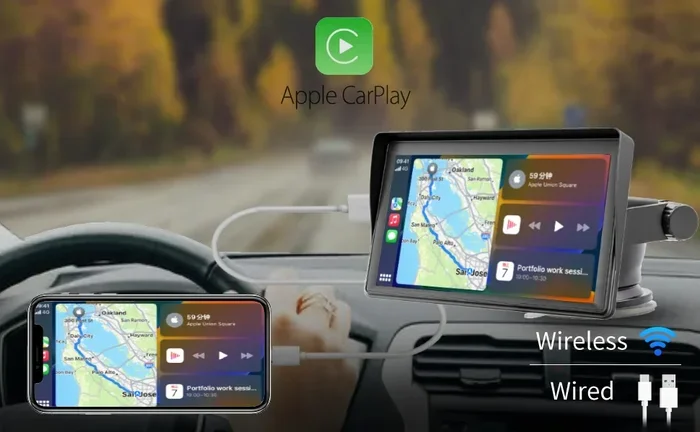
If you have a newer car, you may be able to use wireless CarPlay or Android Auto. These systems go beyond basic Bluetooth. They mirror your phone’s screen on the car display and give you access to apps, navigation, and voice assistants.
Can I connect my iPhone to CarPlay wirelessly? Yes, many newer iPhones and CarPlay-compatible cars support wireless connection. You just need to set it up once through your car’s settings menu.
These wireless systems use Bluetooth for the initial handshake and then switch to a Wi-Fi connection for faster data transfer. The result is smoother performance and better app responsiveness.
Bluetooth Voice Commands
Most car Bluetooth systems support voice commands. You can say “Call Mom” or “Play jazz music” without touching your phone. This feature is especially valuable for safety.
Make sure your phone’s voice assistant is set up and linked to your car’s system. On iPhone, this works through Siri. On Android, Google Assistant handles voice commands.
Quick Tips for Bluetooth Pairing Success
- Always pair while parked. Safety comes first. Do not attempt Bluetooth setup while driving.
- Keep your phone close. Place it on the center console or dashboard during pairing for the strongest signal.
- Delete old pairings regularly. A clean paired devices list prevents connection conflicts.
- Check your car manual. Every car brand has slightly different steps. Your manual has the exact instructions.
- Turn off other wireless devices. Other Bluetooth devices, Wi-Fi hotspots, and even USB cables can cause interference during pairing.
- Be patient. Some car systems take 30 seconds or more to appear on your phone’s list. Wait before assuming something is wrong.
Common Mistakes People Make When Pairing Bluetooth
Avoiding these mistakes saves you time and frustration. Many people run into the same issues over and over because of simple oversights.
Mistake 1: Not turning on Bluetooth in the car. It sounds obvious, but many people only turn on Bluetooth on their phone and forget the car side. Both devices must have Bluetooth enabled.
Mistake 2: Pairing too many devices. Cramming 15 devices into your car’s memory slows everything down and causes connection errors. Keep it to 5 or fewer.
Mistake 3: Ignoring software updates. Outdated software is the number one cause of Bluetooth problems. A simple update often fixes everything.
Mistake 4: Leaving the phone in a pocket or bag. During pairing, your phone needs a clear line of sight to the car’s antenna. Keep it on the dashboard or center console.
Mistake 5: Giving up too quickly. If pairing fails the first time, do not assume it will never work. Restart both devices and try again. Success is just one retry away.
When to Seek Professional Help
Most Bluetooth issues are easy to fix at home. But sometimes the problem is deeper. Here are signs that you need professional help:
- The Bluetooth function does not turn on at all, even after a restart.
- Your car’s infotainment system freezes every time you try to pair a device.
- You have tried all troubleshooting steps and still cannot connect.
- Other car electronics start acting strangely after a Bluetooth attempt.
A qualified technician can check your car’s Bluetooth module and antenna. They can also update the infotainment firmware if needed. Do not hesitate to visit a service center if the problem persists.
Final Thoughts
Pairing a new Bluetooth device to your car is a simple process that anyone can master. Once you know the steps, it takes less than three minutes. The key is patience, a clean device list, and keeping your software up to date.
Remember to always set up your connection while parked. Use the tips in this guide to get the best sound quality and the most reliable connection. Bluetooth technology makes driving safer and more enjoyable every single day.
Whether you want to stream your favorite playlist, take calls hands-free, or use navigation apps, a solid Bluetooth connection is essential. Follow the steps above, troubleshoot any issues calmly, and you will be connected in no time. Happy driving.
Frequently Asked Questions
How long does it take to pair a Bluetooth device to a car?
Most pairings take less than 3 minutes once both devices are ready. The process is quick and straightforward for most car models. If you run into issues, a restart usually fixes things fast.
Can I pair multiple phones to my car’s Bluetooth system?
Yes, most car systems allow you to pair several phones at once. The exact number depends on your car brand and model. Keep the list under 10 devices for the best performance.
Why does my Bluetooth keep disconnecting in the car?
Disconnections usually happen due to interference, outdated software, or a full paired devices list. Try clearing old connections and restarting both devices. If the problem continues, check for software updates on both your phone and car system.
Do I need any extra equipment to use Bluetooth in my car?
Most modern cars have built-in Bluetooth. Older vehicles may need a Bluetooth car adapter or receiver. These small devices plug into your car’s audio system and add wireless connectivity.
Is it safe to pair my phone while driving?
No, you should always pair your Bluetooth device while parked. Setting up a wireless connection requires looking at screens and pressing multiple buttons. Keep your eyes on the road and hands on the wheel at all times.
Can I use Bluetooth for both phone calls and music at the same time?
Yes, modern Bluetooth systems handle both tasks simultaneously. The Hands-Free Profile manages calls while the Advanced Audio Distribution Profile streams music. Your car switches between them automatically based on what you are doing.
=== CONCLUSION ===
Pairing a new Bluetooth device to your car does not have to be stressful. With the right steps and a little patience, you can be connected in minutes. This guide covered everything from the basic pairing process to advanced features and troubleshooting tips.
Remember to keep your software updated, limit your paired devices, and always set up while parked. These simple habits prevent most Bluetooth problems before they start. Now you have the knowledge to handle any Bluetooth connection issue with confidence.
Get out there, connect your device, and enjoy a smarter, safer driving experience. Your car and your phone are meant to work together. Once you pair them, you will wonder how you ever drove without it.