How Do I Reset My Volkswagen Computer and Save Money
Resetting your Volkswagen computer is simpler than most owners think. You can clear error codes, reset service intervals, and fix minor electronic glitches without visiting a dealership. This guide walks you through every method, from basic battery disconnects to using an OBD2 scan tool, so you can tackle the job yourself and save serious cash.
Your Volkswagen is packed with smart computers. These systems control everything from your engine timing to your infotainment display. Over time, these computers can develop glitches. Warning lights may stay on even after you fix the problem. Service reminders might not reset properly. The good news? You can handle most of these issues yourself.
Learning how to reset your Volkswagen computer saves you time and money. Dealer visits for simple resets can cost a pretty penny. With the right knowledge, you skip that expense entirely. This guide covers every method you need. Whether you own a Jetta, a Passat, a Tiguan, or any other VW model, you will find clear steps here.
We will walk you through each reset type. You will learn what tools you need. You will understand when a reset works best. And you will avoid common mistakes that cause problems. By the end, you will feel confident tackling this job in your own garage.
Key Takeaways
- Multiple Reset Methods: You can reset your VW computer using a battery disconnect, an OBD2 scan tool, or a manual button combination depending on your model.
- Save Money: Doing it yourself avoids costly dealer fees that can range from $100 to $300 per visit.
- Common Issues Fixed: A reset clears check engine lights, service reminders, and dashboard warning messages.
- Right Tools Matter: A basic OBD2 scanner and a few common household items are all you need for most resets.
- Safety First: Always follow proper procedures to avoid damaging your VW’s electronic systems.
- Know When to Seek Help: Some complex issues require professional diagnostics even after a reset.
📑 Table of Contents
- Why Reset Your Volkswagen Computer?
- Tools You Will Need for a VW Computer Reset
- Method 1: The OBD2 Scan Tool Reset
- Method 2: The Battery Disconnect Reset
- Method 3: The Soft Reset (Infotainment System)
- Method 4: The Button Combination Reset
- Common Mistakes to Avoid When Resetting Your VW Computer
- When to See a Professional Instead
- How Resetting Your VW Computer Saves You Money
- Tips for Keeping Your Volkswagen Computer Healthy
- Final Thoughts
Why Reset Your Volkswagen Computer?
Your VW has multiple computers running behind the scenes. These are called Electronic Control Units, or ECUs. Each one handles a specific job. The Engine Control Module manages fuel and ignition. The Transmission Control Unit shifts gears. The Body Control Module handles lights, locks, and windows.
Sometimes these systems need a fresh start. Here are the most common reasons Volkswagen owners reset their computers:
- Check Engine Light Stays On: After fixing a problem, the light often needs a manual reset. The VW ECU reset clears stored fault codes.
- Service Interval Reminder: Your dashboard shows “Service Due” messages. A reset clears these after an oil change or maintenance visit.
- Battery Replacement: When you install a new battery, the computers lose their adapted settings. A reset helps them relearn.
- Dashboard Warning Glitches: Fake warnings or persistent alerts often disappear after a reset.
- Performance Issues: Rough idling or hesitation sometimes clears up when you reset the adaptive learning values.
- Infotainment Freezes: A soft reset can fix a frozen screen without needing a full reboot.
Each of these problems has a simple fix. You do not need to be a mechanic. You just need the right instructions. And that is exactly what this guide provides.
Tools You Will Need for a VW Computer Reset
Before you start, gather your tools. Having everything ready makes the process smooth. You do not want to pause halfway through looking for a cable.
Basic Tools for Every Reset
- OBD2 Scan Tool: This is the most important tool. A basic scanner costs under $30. It reads and clears error codes from your VW’s computer.
- Basic Socket Set: You need a 10mm wrench or socket for the battery terminal.
- Safety Gloves and Glasses: Working near the battery requires protection. Acid and sparks are real risks.
- Owner’s Manual: Your specific VW model may have unique reset procedures. The manual has the details.
- Pen and Paper: Write down any codes before clearing them. You will want these for reference.
Optional but Helpful Tools
- USB Drive (FAT32 Formatted): Some VW models allow software updates via USB.
- WiFi Connection: If your VW has online features, a stable connection helps with updates.
- Multimeter: This helps you check battery voltage before and after the reset.
The VW OBD2 reset method is the most versatile approach. A scan tool works across nearly all VW models and years. It is worth investing in a basic one even if you only plan to do this once.
Method 1: The OBD2 Scan Tool Reset
This is the most reliable and popular method. An OBD2 scanner connects directly to your VW’s diagnostic port. It communicates with the onboard computer. You can read codes, clear codes, and reset service intervals with ease.
Step-by-Step Process
- Locate the OBD2 Port: In most Volkswagens, the port sits under the dashboard on the driver’s side. Look near the steering column. It is a trapezoid-shaped connector.
- Turn the Ignition to On: Do not start the engine. Just turn the key to the “On” position or press the start button without pressing the brake.
- Connect the Scanner: Plug the OBD2 tool into the port. The screen should light up.
- Turn On the Scanner: Follow the device instructions. Most scanners auto-detect the vehicle.
- Read the Codes: Write down any error codes displayed. These tell you what the computer has flagged.
- Clear the Codes: Select “Clear Codes” or “Erase” on the scanner menu. This performs a VW diagnostic reset.
- Turn Off and Disconnect: Power down the scanner and unplug it.
- Start the Engine: Let the engine run for a few minutes. Check if the warning light has gone off.
This method works for most VW models from 1996 onward. The process takes about 10 minutes. You do not need any special skills. Just follow each step carefully.
One important tip: if the check engine light comes back on after a few days, there is an underlying problem you have not fixed yet. The reset clears the light temporarily. The computer will detect the issue again and turn the light back on. Always fix the root cause first.
Also, if you have recently changed your oil or completed maintenance, you may want to check whether does the check engine light come on for an oil change in Volkswagen. Understanding how these systems interact helps you avoid confusion when lights appear after routine service.
Method 2: The Battery Disconnect Reset
This is the oldest and simplest method. Disconnecting the battery resets all the computers in your VW. It clears adaptive learning values, error codes, and custom settings. This method works well after a battery replacement or when you want a full system refresh.
Step-by-Step Process
- Park on a Flat Surface: Make sure your car is in park or neutral. Turn off all accessories.
- Open the Hood: Locate the battery. In most VWs, it sits in the engine bay on the left side.
- Disconnect the Negative Terminal First: Use a 10mm wrench to loosen the negative cable. Pull it off the terminal. Always negative first for safety.
- Wait 15 to 30 Minutes: This lets the capacitors drain completely. The computers forget all stored data.
- Reconnect the Positive Terminal: Attach the positive cable first. Tighten it securely.
- Reconnect the Negative Terminal: Attach the negative cable last. Tighten it firmly.
- Start the Engine: Let it idle for a few minutes. The computers will begin relearning.
- Reset the Clock and Radio Presets: These settings will be lost after a battery disconnect.
This method is effective but has some downsides. Your radio presets will erase. The clock will reset. The power windows may need recalibration. Some VW models require you to hold the window switch in the full-down position for several seconds to recalibrate after a battery disconnect.
If you are wondering about other VW features that might need attention after a reset, consider whether do you have to pay a monthly fee for navigation systems in your Volkswagen. Some navigation features reset or require re-pairing after a full computer reset.
Another consideration: if you have a key fob that acts as a remote starter, a battery disconnect may affect its programming. You might need to change my key fob to remote start settings again after the reset. Check your owner’s manual for the re-pairing process.
Method 3: The Soft Reset (Infotainment System)
Your VW’s infotainment screen can freeze or glitch. A soft reset refreshes the system without erasing any data. This is different from a full computer reset. It targets only the entertainment and display unit.
How to Perform a Soft Reset
- Press and Hold the Power Button: On most VW models, the power button is on the center console or the screen itself. Hold it for 10 to 15 seconds.
- Wait for the Screen to Go Black: The system will power down completely.
- Wait 30 Seconds: Let the system fully discharge.
- Press the Power Button Again: The screen should restart normally.
- Check for Updates: After the reboot, some VWs prompt you to install software updates.
This simple trick fixes most infotainment issues. If the screen still does not respond, you may need to hold the power button for a full 30 seconds. This forces a hard shutdown of the system.
Some owners also ask whether they can connect their iPhone wirelessly to CarPlay. If your VW supports Apple CarPlay, a computer reset sometimes fixes connection issues. You can read more about can I connect my iPhone to CarPlay wirelessly if you run into Bluetooth or wireless display problems after resetting.
Method 4: The Button Combination Reset
Many Volkswagen models allow you to reset the computer using steering wheel buttons. This method is specific to certain dashboards and warning lights. It does not require any tools.
Reset the Service Interval Light
- Turn the Ignition to Position 1: Do not start the engine. Just turn the key one click or press the start button once.
- Press the Trip Button: Hold the trip reset button on the instrument cluster.
- Turn the Ignition to Position 2: Move the key to the “On” position or press the start button.
- Release the Trip Button: The service light should start blinking.
- Press and Hold the Trip Button Again: Hold it until the light goes off. This usually takes 5 to 10 seconds.
- Turn the Ignition Off and Back On: Check that the service reminder has cleared.
This method works on VW models with a traditional trip meter display. If your dashboard has a digital display, the process may differ slightly. Consult your owner’s manual for the exact sequence.
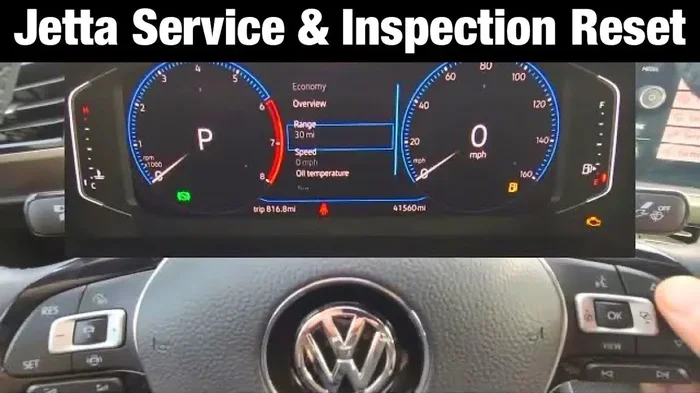
For models with a digital instrument cluster, you can often navigate through menu options. Use the steering wheel controls to find “Service” or “Settings.” Select “Reset Service Interval.” Confirm your choice. The light disappears immediately.
Common Mistakes to Avoid When Resetting Your VW Computer
Even simple tasks can go wrong if you rush. Here are the most common mistakes Volkswagen owners make when resetting their computers:
- Disconnecting the Positive Terminal First: This creates a short circuit risk. Always disconnect the negative terminal first.
- Not Fixing the Root Problem: A reset clears the symptom, not the cause. If your check engine light returns, you have an unfixed issue.
- Using the Wrong OBD2 Scanner: Cheap scanners may not support all VW protocols. Buy one that explicitly lists Volkswagen compatibility.
- Resetting While Driving: Never attempt a reset while the car is in motion. Always park safely first.
- Forgetting to Recalibrate Systems: After a full reset, your power windows, sunroof, and heated seats may need recalibration.
- Skipping the Relearning Process: After a battery disconnect, drive gently for the first 20 minutes. Let the ECU relearn your driving habits.
One mistake that catches people off guard is not knowing how to unlock my car with a phone app after a full system reset. Some VW models with remote features may need the app re-paired after a complete computer reset. Keep your phone app login information handy.
Another thing to watch for: if you have window tints installed, a computer reset should not affect them. But it is worth noting that do window tints go on the inside or outside matters for your care routine. After any under-hood work, avoid high-pressure sprays near the tint edges.
When to See a Professional Instead
Not every problem needs a reset. And not every reset is a DIY job. Here are signs that you should visit a professional:
- Multiple Warning Lights Stay On: If several lights remain after a reset, there is a deeper electrical issue.
- Codes Keep Returning: If the same error code comes back immediately after you clear it, the problem is persistent.
- Software Updates Are Needed: Some VW recalls and updates require a dealer-level tool. These cannot be done at home.
- Transmission Issues: Rough shifting or slipping gears need professional diagnosis.
- Battery Drains Quickly After Reset: This signals a parasitic draw that needs specialized testing.
If you are dealing with a check engine light and wondering about the connection to routine maintenance, it helps to understand whether does the check engine light come on for an oil change in Volkswagen. Sometimes what looks like a computer issue is actually a simple maintenance reminder that needs attention.
For owners who want to handle more car tasks themselves, learning about basic maintenance can save even more money over time. Simple tasks like oil changes and tire rotations go a long way in keeping your VW running smoothly between resets.
How Resetting Your VW Computer Saves You Money
The financial benefit of resetting your Volkswagen computer yourself is clear. Dealer diagnostic fees alone can cost $100 to $300 per visit. A basic OBD2 scanner costs $20 to $50 one time. You break even after two uses.
Here is a simple cost comparison:
- Dealer Reset: $100 to $300 per visit, plus the cost of the diagnostic fee even if no repair is needed.
- DIY OBD2 Reset: $20 to $50 for a scanner, reusable for every reset for years.
- Battery Disconnect Reset: Free, but you may lose some settings and need to re-enter radio codes.
Over the lifetime of your vehicle, these savings add up. If you reset your computer three times a year, you save $300 to $900 annually by doing it yourself. That is real money back in your pocket.
Beyond the direct savings, you also save time. No waiting rooms. No scheduling appointments. No driving to the dealer. You do the reset in your driveway while listening to your favorite music.
Tips for Keeping Your Volkswagen Computer Healthy
A reset fixes problems, but prevention keeps them from happening in the first place. Here are simple habits that protect your VW’s computers:
- Keep Your Battery Clean: Corroded terminals cause voltage drops that confuse the computers. Clean them with a wire brush every six months.
- Use Quality Fuel: Top-tier gasoline keeps your fuel system sensors accurate and your ECU running smoothly.
- Update Software When Prompted: VW releases software updates that fix known bugs. Keep your system current.
- Scan for Codes Regularly: Even when no light is on, a quick scan can reveal hidden issues before they become expensive repairs.
- Avoid Short Trips When Possible: Short drives do not let the computer fully cycle through its diagnostic routines.
- Read Your Owner’s Manual: It contains model-specific reset procedures and maintenance schedules tailored to your exact VW.
Taking care of your Volkswagen’s electronic systems pays off. Fewer glitches mean fewer trips to the shop. And fewer trips mean more money in your wallet.
Final Thoughts
Resetting your Volkswagen computer is one of the easiest ways to take control of your car’s maintenance. You do not need special training. You do not need to visit a dealer. With a basic OBD2 scanner and this guide, you handle the job in minutes.
Remember the key methods we covered. The OBD2 scan tool reset is your go-to for clearing codes. The battery disconnect reset gives you a full system refresh. The soft reset handles infotainment glitches. The button combination reset tackles service reminders. Each method serves a different purpose, and they all save you money.
Start with the simplest approach. If that does not work, move to the next method. Be patient. Follow each step carefully. And always fix the underlying problem before resetting. A reset is not a cure, it is a refresh.
Your Volkswagen is a well-engineered machine. Its computers are designed to be user-friendly and resettable. Trust the process. Trust your abilities. And enjoy the satisfaction of handling car maintenance on your own terms.
Keep this guide bookmarked. You never know when you will need it again. And share it with a fellow VW owner who might be struggling with a stubborn warning light. Knowledge shared is money saved.
Frequently Asked Questions
Can I reset my Volkswagen computer without an OBD2 scanner?
Yes, you can. The battery disconnect method and the button combination method do not require any special tools. However, an OBD2 scanner gives you the most precise and reliable results. It also lets you read error codes before clearing them, which helps you understand what triggered the warning in the first place.
How often should I reset my Volkswagen computer?
You should only reset when needed. Common triggers include a check engine light after a repair, a completed service interval, or a new battery installation. Resetting too often does not provide any benefit and can sometimes erase valuable adaptive learning data your car needs for optimal performance.
Will resetting my VW computer erase my saved settings?
It depends on the method. A soft reset or OBD2 code clear will not erase your settings. A full battery disconnect will reset the clock, radio presets, and power window calibrations. Your seat positions and mirrors usually stay saved unless the battery was disconnected for an extended period.
Is it safe to drive my Volkswagen after a computer reset?
Yes, it is safe. In fact, driving after a reset helps the computer relearn your driving habits. Just drive gently for the first 15 to 20 minutes. Avoid heavy acceleration or hard braking during this relearning period. This allows the ECU to adapt smoothly to your style.
What should I do if the check engine light comes back after a reset?
If the light returns, there is an unresolved issue your VW’s computer detected again. Do not simply reset it a second time. Use your OBD2 scanner to read the code and identify the problem. Common causes include loose gas caps, faulty sensors, or emissions system issues that need repair.
Do I need special software to reset my Volkswagen computer?
For basic resets, a standard OBD2 scanner works perfectly. You do not need expensive dealer-level software. However, if you need to perform a software update or a module programming reset, you may need VCDS (VAG-COM) or official VW diagnostic software. These tools are more advanced and typically used by professionals.