How Do I Change the Date and Time on My Dash Cam Now
Changing the date and time on your dash cam is essential for accurate video evidence and insurance claims. This guide gives you simple, step-by-step instructions for Garmin, Nextbase, Blackvue, and other brands. You will learn how to adjust the clock, set the date format, and avoid the most common mistakes.
If you have ever watched a dash cam video and noticed the wrong date or time, you know how frustrating it can be. Accurate timestamps turn a simple recording into solid evidence. Whether you need footage for an insurance claim or to prove who was at fault in a traffic incident, the clock on your dash cam must be correct. Many drivers wonder how to change the date and time on their dash cam, and the good news is that it is usually a quick, straightforward process.
This guide walks you through the exact steps for the most popular dash cam brands. You will also learn why the date and time matter, what tools you need, and how to avoid the mistakes that trip up most people. By the end, you will feel confident adjusting your device in just a few minutes.
Key Takeaways
- Accurate timestamps protect you: Correct date and time make your footage legally valid.
- It only takes a few minutes: Most dash cams let you change the clock in under three minutes.
- Know your model: The exact steps vary by brand, but the process is always similar.
- Avoid common errors: Never guess the time; use a reliable source like your phone.
- Keep it updated: Reset the clock after a battery disconnect or firmware update.
- Use the right format: Choose between 12-hour and 24-hour time based on your preference.
📑 Table of Contents
Why Accurate Date and Time on Your Dash Cam Matters
The clock on your dashboard camera is not just a technical detail. It is a critical part of the evidence your footage provides. When an accident occurs, insurance companies and police officers look at the timestamp to understand the sequence of events. A wrong date or time can weaken your claim or even make the video unusable.
Here are a few reasons you should always keep your dash cam clock accurate:
- Legal validity: Courts and insurers trust footage with a correct, verifiable timestamp more than footage without one.
- Insurance claims: A clear date and time help adjusters confirm when the incident happened, which speeds up the process.
- Incident reconstruction: Accurate timestamps allow you to match your video with traffic camera footage or witness statements.
- Parking mode recordings: If your dash cam records while parked, the time stamp tells you exactly when a hit or scrape occurred.
Think of your dash cam as a digital witness. Just like a witness must give the correct time, your camera must do the same. If you ever need to review footage weeks later, you will want to know precisely when it was captured.
What You Need Before You Start
Before you touch the settings menu, gather a few simple items. You do not need any special tools, just a few minutes of your time. Here is what you will need:
- Your dash cam: Make sure it is powered on and the screen is visible.
- A reliable time source: Your smartphone is the best tool. Open the clock app and note the exact current date and time.
- Your dash cam manual: While the steps are similar across brands, the manual can help you find the menu quickly.
- A stable surface: Park your car safely and set the dash cam in view so you can read the screen.
One important tip: if you have ever wondered whether you should leave a dash cam in the car all the time, the answer is usually yes, but a dead battery can reset the clock. If your dash cam loses power, you will need to reset the time again. Keep your phone nearby to check the correct time before you begin.
Step-by-Step Guide to Changing the Date and Time
Every dash cam has a settings menu where you can adjust the clock. The path to that menu varies by brand, but the general flow is the same. Below, I walk you through the process for the most popular models.
For Garmin Dash Cams
Garmin dash cams are known for their intuitive menus. To change the date and time:
- Press the power button to wake the screen.
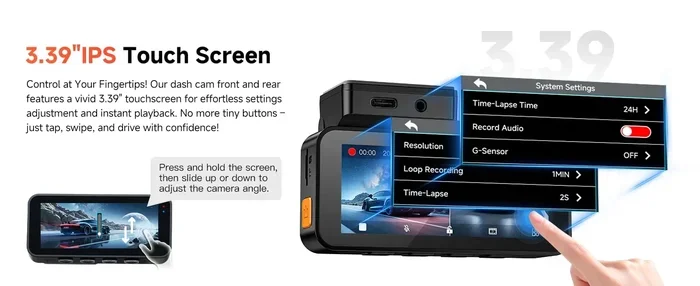
- Swipe down or tap the menu icon to open the settings.
- Look for the System or Setup option.
- Select Date & Time.
- Turn off the Auto Set or Sync with Phone toggle if it is on.
- Use the on-screen buttons to adjust the month, day, year, hour, and minute.
- Choose your preferred time format (12-hour or 24-hour).
- Tap Save or OK to confirm.
Garmin models often allow you to sync with a phone app, but manually setting the clock ensures it stays exactly right. If your dash cam is mounted near the mirror visor, you can easily see the screen while making these adjustments.
For Nextbase Dash Cams
Nextbase dash cams feature a simple on-screen menu. Here is how to adjust the clock:
- Tap the screen to wake the dash cam.
- Swipe left to access the Settings gear icon.
- Select System Settings.
- Choose Date & Time.
- Disable any automatic time zone setting if you want to set it manually.
- Use the up and down arrows to change the date, then the hour and minute.
- Select 12h or 24h format.
- Press Confirm to save your changes.
Nextbase cameras also have a Quick Menu that lets you jump straight to the clock settings. If you are not sure which button to press, consult the quick start guide that came in the box.
For Blackvue and Other Brands
Blackvue dash cams are a bit different because they often rely on a paired smartphone app for advanced settings. However, you can still change the date and time directly on the device:
- Press and hold the power button to access the main menu.
- Navigate to Settings using the on-screen buttons.
- Find System Setup or General Settings.
- Select Clock or Date & Time.
- Turn off any network-based time sync.
- Adjust the year, month, day, hour, and minute with the directional pad.
- Choose the correct time format.
- Press Apply or OK.
For other brands like Thinkware, Rexing, or Vantrue, the steps are very similar. Look for a Setup, System, or Menu option, then find the date and time setting. If you get stuck, the user manual will have a diagram of the menu path.
Common Mistakes to Avoid
Changing the date and time seems simple, but small errors can cause big problems. Here are the most common mistakes drivers make, and how to avoid them:
- Guessing the time: Always check your phone or another reliable clock before you start. A wrong time is worse than no time.
- Forgetting the time zone: If you travel across state lines, your dash cam may still be set to the old time zone. Update it when you move.
- Leaving auto-sync on: Some dash cams try to sync with a phone or Wi-Fi network. This can override your manual settings. Turn it off if you want full control.
- Not saving the changes: After you adjust the clock, always confirm or save. If you just exit the menu, the changes may not stick.
- Confusing 12-hour and 24-hour format: Double-check that your dash cam shows the time in the format you understand. A 2:00 PM timestamp can look like 14:00, and vice versa.
Another thing to keep in mind: your dash cam does not work like a car vanity mirror that you glance at for personal grooming. The dash cam is a security device, and its clock must be treated with the same care as the clock on your phone or GPS.
Keeping Your Dash Cam Clock Accurate
Once you have set the correct date and time, you want it to stay that way. Most dash cams use an internal battery or a capacitor to keep the clock running when the car is off. Over time, this small battery can lose charge, especially if you frequently disconnect the dash cam.
Here are a few habits that will help you maintain an accurate clock:
- Keep the dash cam plugged in: A constant power source prevents the clock from resetting. If your dash cam is hardwired, you rarely need to worry about this.
- Check the time once a month: Spend a minute every month to verify the clock is still correct. It takes less time than changing it.
- Reset after a firmware update: Some updates reset the device to factory settings, including the clock. Always double-check after an update.
- Use the phone app when possible: Many modern dash cams sync their clock with a companion app on your phone. This can keep the time accurate automatically.
If you ever notice that your dash cam is recording with the wrong timestamp, do not ignore it. Fix it right away. The few minutes it takes to adjust the clock can save you from a headache later when you need that footage the most.
Final Thoughts
Changing the date and time on your dash cam is one of the simplest yet most important things you can do as a driver. Accurate timestamps protect you in accidents, support your insurance claims, and give you peace of mind. Whether you drive a Garmin, Nextbase, Blackvue, or any other brand, the process is quick and easy once you know where to look.
Take a few minutes today to check your dash cam clock. It is a small act that makes a big difference. With the right date and time set, your dashboard camera becomes a truly reliable witness on the road. If you ever need to review your footage, you will be glad you took this simple step.
Remember to keep your dash cam powered and your time source handy. A well-set clock ensures that every recording tells the truth, down to the exact second.
Frequently Asked Questions
Can I change the date and time on my dash cam without the manual?
Yes, you can. Most dash cams have a similar menu structure. Look for a Settings or Setup option, then find Date & Time. If you are unsure, a quick online search for your specific model will show you the exact steps.
Why does my dash cam clock reset every time I turn off the car?
This usually happens when the dash cam is not receiving constant power. Check the power cable and ensure it is connected to a source that stays live when the ignition is off. A hardwired kit or a parking mode cable can solve this problem.
Does the dash cam date and time affect video quality?
No, the clock does not affect the video quality itself. However, an incorrect timestamp can make the footage less useful as evidence. The video file remains clear, but the time stamp becomes unreliable.
How often should I check my dash cam clock?
Once a month is a good habit. You should also check it after a firmware update, a battery disconnect, or if you notice the time looks off. A quick glance takes only a few seconds.
Can I use my phone to automatically sync the dash cam time?
Many modern dash cams support Bluetooth or Wi-Fi syncing with a phone app. This feature can keep the clock accurate automatically. Check your dash cam’s app settings to enable this option if it is available.
What should I do if the menu buttons on my dash cam are unresponsive?
First, make sure the dash cam is fully powered on and the screen is unlocked. If the buttons still do not work, try a soft reset by holding the power button for ten seconds. If the problem continues, consult the user manual or contact the manufacturer’s support team.