How Do I Force My Bluetooth to Connect to My Car Now
Forcing your Bluetooth to connect to your car is simpler than most people think. This guide walks you through the exact steps to pair your phone, troubleshoot common issues, and keep your connection strong. Whether you use an iPhone or Android, these tips will help you get Bluetooth working in your car fast and keep it working every time you get behind the wheel.
You’re standing by your car, phone in hand, ready to hit the road. You press the Bluetooth button, wait a few seconds, and… nothing happens. Your phone and your car just won’t play nice. This is a frustrating experience, but it happens to almost everyone at some point. The good news is that forcing your Bluetooth to connect to your car is usually quick and easy. You just need to know the right steps.
In this guide, we’ll walk you through everything you need to know about getting your Bluetooth working in your car. We’ll cover simple fixes, common problems, and expert tips that actually work. Whether you’re trying to stream music, take hands-free calls, or use car navigation through your phone, this article has you covered.
Let’s get started. No more staring at blank screens or hearing that annoying “connection failed” message. By the end of this guide, you’ll know exactly how to force your Bluetooth pairing and keep it working smoothly every time you get in the car.
Key Takeaways
- Restart Both Devices: A simple restart of your phone and car infotainment system often fixes Bluetooth connection problems instantly.
- Check Bluetooth Visibility: Make sure your phone is set to discoverable and your car is in pairing mode before attempting to connect.
- Delete Old Pairings: Removing previous Bluetooth connections can resolve conflicts that prevent new pairings from working.
- Update Software Regularly: Keeping your phone and car software up to date ensures Bluetooth compatibility and prevents connection errors.
- Distance Matters: Stay within Bluetooth range (about 30 feet) during the initial pairing process for the best results.
- Reset Network Settings: If all else fails, resetting your phone’s network settings can clear deep-rooted Bluetooth troubleshooting issues.
📑 Table of Contents
- Why Bluetooth Won’t Connect to Your Car
- Step-by-Step Guide to Force Bluetooth Connection
- Advanced Troubleshooting for Stubborn Bluetooth Issues
- Tips for a Stronger and More Reliable Bluetooth Connection
- When to Seek Professional Help
- Bluetooth vs. Other Car Connection Methods
- Quick Tips Summary
- Final Thoughts
Why Bluetooth Won’t Connect to Your Car
Before we jump into the fix, it helps to understand why Bluetooth connection problems happen in the first place. Bluetooth uses short-range radio waves to connect devices. When those waves get disrupted, the connection fails. Several things can cause this disruption.
Sometimes the issue is simple. Your phone might not be in pairing mode. Your car’s infotainment system might be looking for a different device. Or both devices might just need a fresh start. Other times, the problem runs deeper. Software glitches, outdated firmware, or conflicting Bluetooth settings can all get in the way.
Understanding the root cause helps you pick the right fix. That’s exactly what we’ll cover in the sections below. Each solution targets a specific reason why your car Bluetooth might not be connecting.
Common Reasons Bluetooth Fails to Connect
- Device Not in Pairing Mode: Both your phone and car need to be actively searching for each other. If one side is asleep, the connection won’t happen.
- Previous Pairing Conflicts: Old connections stored on either device can interfere with new pairings. Your phone might try to reconnect to a different device automatically.
- Software Outages: Outdated phone software or car firmware can create Bluetooth compatibility issues that block the connection.
- Distance and Obstacles: Bluetooth has a limited range. Walls, other electronics, and even your own body can weaken the Bluetooth signal during pairing.
- Low Battery: A low battery on either device can cause Bluetooth to behave unpredictably or shut off entirely.
- Too Many Connected Devices: Some car systems struggle when multiple devices are trying to connect at the same time.
Step-by-Step Guide to Force Bluetooth Connection
Now let’s get into the action. These steps work for most cars and phones. Follow them in order, and you’ll likely solve the problem by step three or four.
Step 1: Turn Off Bluetooth on Both Devices
Start by turning Bluetooth off on your phone and your car’s infotainment system. This might sound counterintuitive, but it clears the current connection state. On your phone, go to Settings and toggle Bluetooth off. On your car, navigate to the Bluetooth settings menu and disable it there too.
Wait about 10 seconds before moving to the next step. This small pause lets both devices fully reset their Bluetooth settings. It’s a simple trick that works surprisingly often.
Step 2: Turn Bluetooth Back On and Make Your Phone Discoverable
Now turn Bluetooth back on. On your phone, make sure it’s set to visible or discoverable. This tells other devices that your phone is ready to pair. Most phones keep this mode active for only a few minutes, so act quickly.
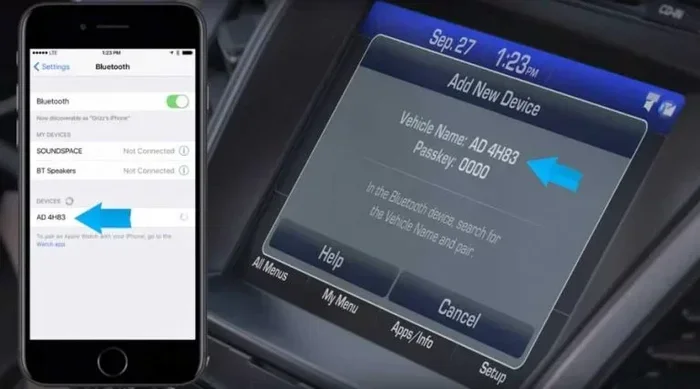
On your car, go into the infotainment system and select Pair New Device or Add Device. Your car should now start scanning for available devices. Within a few seconds, your phone should appear on the car’s screen.
Step 3: Select Your Phone and Complete the Pairing
Tap your phone’s name on the car’s display. You may see a pairing code on both screens. Make sure the codes match, then confirm the connection. Your phone and car are now linked.
Test the connection right away. Play some music or make a test call. If the audio streams smoothly, you’re all set. If not, don’t worry. We’ll cover more fixes below.
Step 4: Delete Old Pairings If the Connection Still Fails
Sometimes old Bluetooth pairings cause conflicts. Go to your phone’s Bluetooth settings and forget the car. Do the same on the car’s system for your phone. Then start the pairing process fresh from Step 1.
This step is especially helpful if you recently bought a used car or if someone else paired their phone to your car recently. Clearing old connections gives your Bluetooth connection a clean slate.
Advanced Troubleshooting for Stubborn Bluetooth Issues
If the basic steps didn’t work, don’t give up yet. There are more advanced fixes that tackle deeper Bluetooth troubleshooting issues. These methods take a few extra minutes but solve most persistent problems.
Reset Your Phone’s Network Settings
Every phone stores network data, including Bluetooth pairings and Wi-Fi connections. Sometimes this data gets corrupted. Resetting your network settings clears all of it and starts fresh.
On iPhone, go to Settings > General > Transfer or Reset iPhone > Reset > Reset Network Settings. On Android, go to Settings > System > Reset Options > Reset Wi-Fi, Mobile & Bluetooth. You’ll lose saved Wi-Fi passwords, but your Bluetooth connection will get a clean start.
Update Your Phone and Car Software
Outdated software is one of the top causes of Bluetooth not connecting. Phone updates often include fixes for Bluetooth connectivity bugs. Car software updates do the same for the infotainment system.
Check your phone for updates first. Then check your car’s system. Many newer cars let you update the software through a USB drive or over Wi-Fi. If you’re not sure how, consult your car’s manual or contact the dealer.
Check for Interference from Other Devices
Other electronic devices can interfere with Bluetooth wireless signals. USB cables, chargers, dash cams, and even other phones in the car can create noise that disrupts the Bluetooth signal. Try unplugging unnecessary devices and see if the connection improves.
If you use a dash cam, try unplugging it temporarily during the pairing process. Some dash cams operate on the same frequency band as Bluetooth and can cause conflicts. This is a lesser-known but surprisingly common issue.
Forget and Re-Pair Using Your Car’s Manual
Every car model has a slightly different process for Bluetooth pairing. Your car’s owner manual has the exact steps. It also lists specific troubleshooting steps for your model. Taking five minutes to check the manual can save you a lot of frustration.
Some cars have a dedicated Bluetooth button on the steering wheel or dashboard. Others require you to navigate through the infotainment menu. Knowing the exact process for your car makes a big difference.
Tips for a Stronger and More Reliable Bluetooth Connection
Once you get your Bluetooth connected, you want it to stay that way. These tips help keep your connection strong and reliable every time you drive.
Keep Your Phone Charged
A low battery can cause your phone to reduce Bluetooth power to save energy. This weakens the signal and can cause dropouts. Keep your phone charged before long drives, and consider using a car charger to maintain battery levels.
Place Your Phone in a Good Location
Bluetooth works best when there are no obstacles between your phone and the car’s antenna. The glove box or center console are often good spots. Avoid placing your phone under a seat or in a closed compartment where the Bluetooth range gets blocked.
Limit the Number of Connected Devices
Most car systems work best with one or two paired devices. If you have five phones and three tablets paired to your car, the system can get confused. Keep only the devices you actually use connected.
Restart Your Car’s Infotainment System Regularly
Just like your phone, your car’s infotainment system benefits from a regular restart. Turn the car off, wait 30 seconds, and turn it back on. This clears temporary glitches and keeps the Bluetooth connection running smoothly.
When to Seek Professional Help
Most Bluetooth connection issues are easy to fix at home. But sometimes the problem is hardware-related and needs professional attention. Here are signs that you should visit a mechanic or car electronics specialist.
- The Bluetooth Module Is Faulty: If your car’s Bluetooth has never worked and none of the fixes above help, the Bluetooth module itself may be defective.
- Intermittent Connections: If the connection drops randomly and frequently, there may be a wiring issue or a failing antenna.
- Error Messages on the Car Display: Specific error codes on your car’s screen can point to a hardware problem that needs professional diagnosis.
- You Recently Had Car Electronics Work Done: If the Bluetooth stopped working after a recent install or repair, the new equipment may be interfering with the existing system.
A professional can run diagnostics and determine whether the issue is with the car’s Bluetooth module, the wiring, or the infotainment system. In some cases, a simple module replacement solves the problem completely.
Bluetooth vs. Other Car Connection Methods
Bluetooth isn’t the only way to connect your phone to your car. Understanding your options helps you choose the best method for your needs.
| Connection Method | Best For | Pros | Cons |
|---|---|---|---|
| Bluetooth | Hands-free calls, music streaming | Wireless, easy to pair, works with most phones | Limited range, occasional dropouts |
| Apple CarPlay | iPhone users, navigation, apps | Seamless integration, Siri support | Requires compatible car or adapter |
| Android Auto | Android users, navigation, apps | Google Maps, voice commands, wide support | Requires compatible car or adapter |
| USB Cable | Charging, reliable audio | Stable connection, charges phone | Wired, limits movement |
| Aux Cable | Basic audio playback | Simple, works on almost any car | Audio only, no hands-free calling |
Many drivers use a combination of these methods. For example, you might use Bluetooth for calls and a USB cable for charging. Some drivers prefer Apple CarPlay or Android Auto for navigation and music because they offer a richer experience. If you’re curious about how CarPlay connects wirelessly, check out our guide on Does CarPlay Use Bluetooth or Wi-Fi to learn more about the technology behind wireless connections.
Understanding your options also helps you troubleshoot. If Bluetooth keeps failing, switching to CarPlay or Android Auto temporarily can get you back on the road quickly. And if you’re wondering whether you can connect your iPhone to CarPlay wirelessly, we’ve covered that too in our article Can I Connect My iPhone to CarPlay Wirelessly.
Quick Tips Summary
- Always restart both devices before trying advanced fixes.
- Keep your phone within 30 feet of the car during initial pairing.
- Delete old pairings that are no longer needed.
- Update both phone and car software regularly.
- Avoid placing your phone under seats or in closed compartments.
- Check your car manual for model-specific pairing instructions.
- Consider using CarPlay or Android Auto as an alternative if Bluetooth issues persist.
These quick tips cover the most important Bluetooth connection best practices. Following them consistently will save you time and frustration on every drive.
Final Thoughts
Forcing your Bluetooth to connect to your car doesn’t have to be a headache. Most connection issues are caused by simple problems that take just a few minutes to fix. Whether it’s a restart, a forgotten pairing, or a software update, the solution is usually straightforward.
The key is to stay patient and work through the steps systematically. Start with the basics and move to advanced fixes only if needed. And remember, if nothing works, professional help is always an option.
Your car’s Bluetooth system is designed to make your driving experience better. Hands-free calling, music streaming, and navigation all work best when your connection is solid. Take a few minutes today to apply the tips in this guide, and you’ll enjoy a seamless Bluetooth connection every time you get behind the wheel.
Stay connected, stay safe, and enjoy the drive. Your car and your phone are meant to work together, and now you know exactly how to make that happen.
Frequently Asked Questions
Why won’t my phone connect to my car’s Bluetooth even though both devices have Bluetooth turned on?
This usually happens because one or both devices are not in pairing mode. Make sure your phone is set to discoverable and your car is actively scanning for new devices. Restarting both devices often fixes this issue quickly.
How do I delete an old Bluetooth pairing from my car?
Go to your car’s infotainment settings, find the Bluetooth menu, and select the device you want to remove. Choose the option to delete or forget the device. Do the same on your phone. Then try pairing again from scratch.
Can too many connected devices cause Bluetooth problems in my car?
Yes, having too many devices paired can confuse your car’s system. Most cars work best with one or two active connections. Remove devices you no longer use to keep the system running smoothly.
Is it normal for Bluetooth to disconnect randomly while driving?
Occasional disconnections can happen due to interference from other electronics or low battery. If it happens frequently, check for software updates on both your phone and car, and make sure your phone is in a good signal location inside the car.
What should I do if my car’s Bluetooth only works for calls but not for music?
This is usually a media audio setting issue. Go to your phone’s Bluetooth settings, find your car, and make sure “Media Audio” is turned on. Some cars also have a separate setting for media playback that needs to be enabled.
Can I use wireless CarPlay instead of Bluetooth for a better connection?
Yes, wireless CarPlay offers a more stable and feature-rich connection for iPhone users. It uses both Bluetooth and Wi-Fi to deliver a faster, more reliable experience. You can learn more about how CarPlay connects wirelessly in our detailed guide on the topic.